
Refer the steps given below to install Online Backup Manager :
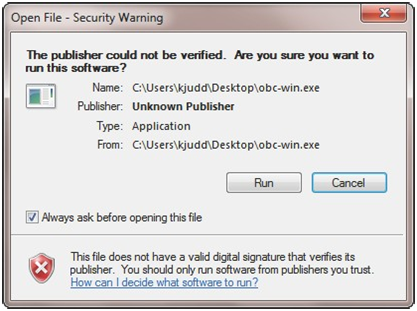
Choose “Run” from the prompt box. This will download the application and begin the installation process.
You may also choose to “Save to Disk”. If You choose this option, please remember which directory you save these software file to for easy locating. Once the file has finished downloading, locate the file and open it to begin the installation process. Please allow time for the software to download before proceeding.
2. Installing the OBM Software
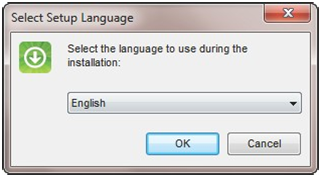
Select the appropriate language from the drop-down menu. Click OK.
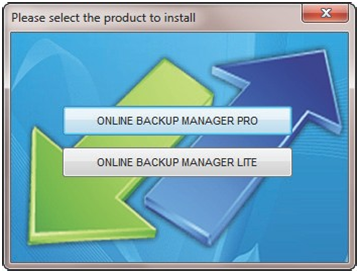
Select the product you are going to install(OBMProorOBMLite).
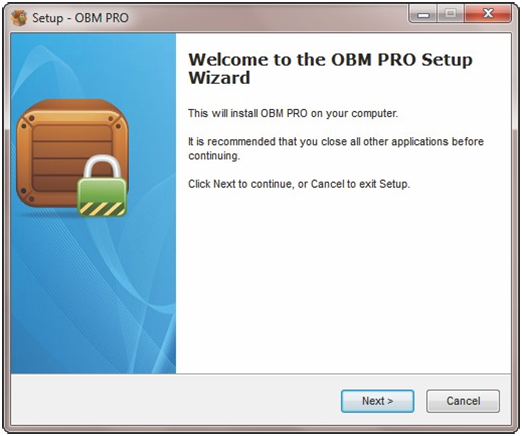
At the next prompt box, select NEXT.
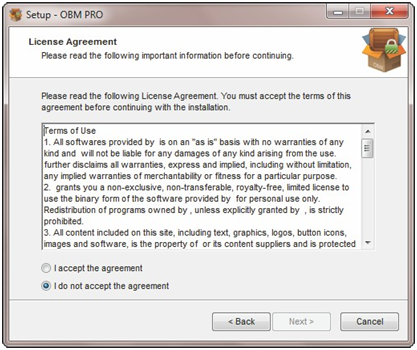
After reading the software’s license agreement, choose the “I accept the agreement ”option, then click NEXT.
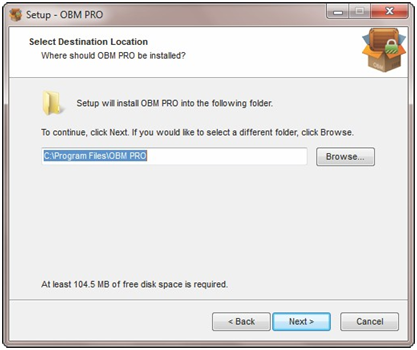
Click NEXT to install in to the default location(or pick the location of your choice to install to by choosing BROWSE and then clicking NEXT.
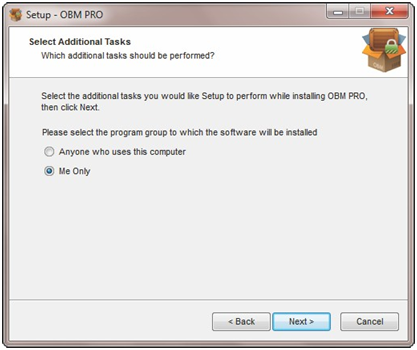
At the next prompt box, click NEXT. After that, another prompt box for Permissions will show up. If you have other users on this server/work station that you do not want to have access to this application, choose the “MeOnly” option, otherwise use the default setup and allow all uses.
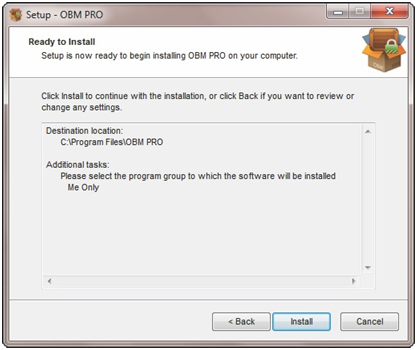
Now you are ready to finalize the installation of the software. Click INSTALL.
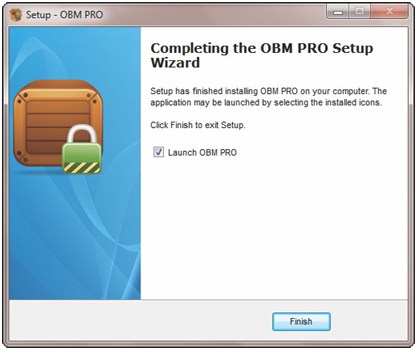
Congratulations! OBM has successfully installed on your computer. Click on the FINISH button and you’re ready to go.
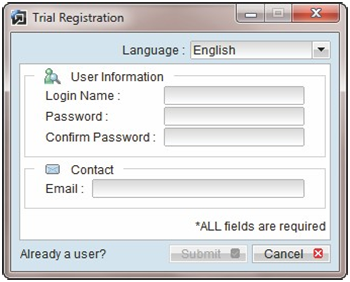
Complete the form with your trial registration, or current member, information and click SUBMIT.
NOTE: Choose a password with at least 7 characters and one capital letter or number for best practice security.
Using the Software
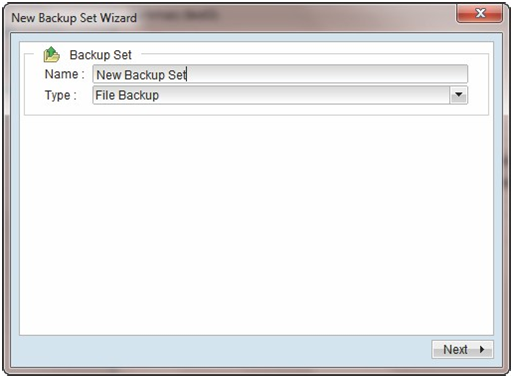
Now it’s time to define the backup set and schedule...you’re almost done! You can call your backup set anything you wish, but for this document we are going to use the default set name.So, simply click NEXT.
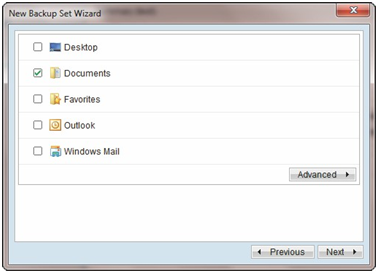
OBM will automatically select known favorites as shown below. If you wish to select additional directories, click the ADVANCED button. To deselect, simply uncheck a box next to a directory.
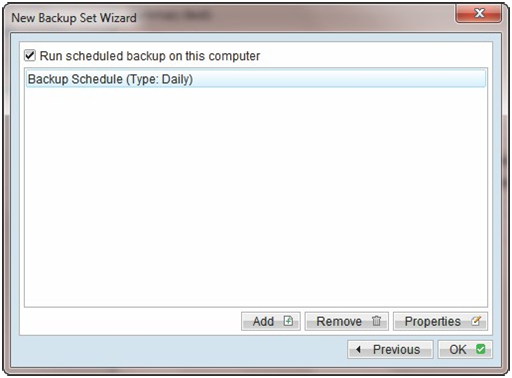
Now the schedule box appears. By default, OBM back up daily at 21:00 (9pm). If you wish to change the time of your backup,simply select Properties and choose your customized preferences. When finished, click OK.
You’re all set to back up your important files! An internet connection is necessary to upload the files you wish to backup; a high-speed connection is recommended for optimal performance with our software. We thank you for choosing our company and for your continued support of our software and services.
Comments
Article is closed for comments.