
This article will help you delete storage from the Portal. Please follow below steps to remove storage from the portal.
Note : Remove storage from portal will set delete flag to storage entry. It will not delete storage ( bucket ) from your storage provider. e.g. If you have Wasabi Direct Cloud Storage and when you delete it just set Delete flag to our Portal.
Before Delete storage from the Portal please make sure following steps you followed.
1. Please make sure no users in MSP360 using the storage. So you need to remove all users from the MSP360 Console. Please follow below steps to remove data from the MSP360 Console.
Delete Users and/or User Data
You can delete user accounts via Management Console when there is no need for keeping users due to a contract end or similar situation. You can delete your user accounts and delete their data on backup storage directly from the Management Console.
Note that user data deletion may take several days, depending on storage account settings. The progress cannot be reported. Once the deletion process is completed, you will be notified by email
To Delete User
To delete a user, proceed as follows:
- In the Organization menu, select Users.
- Find a user you to delete, then click the X in the appropriate row.
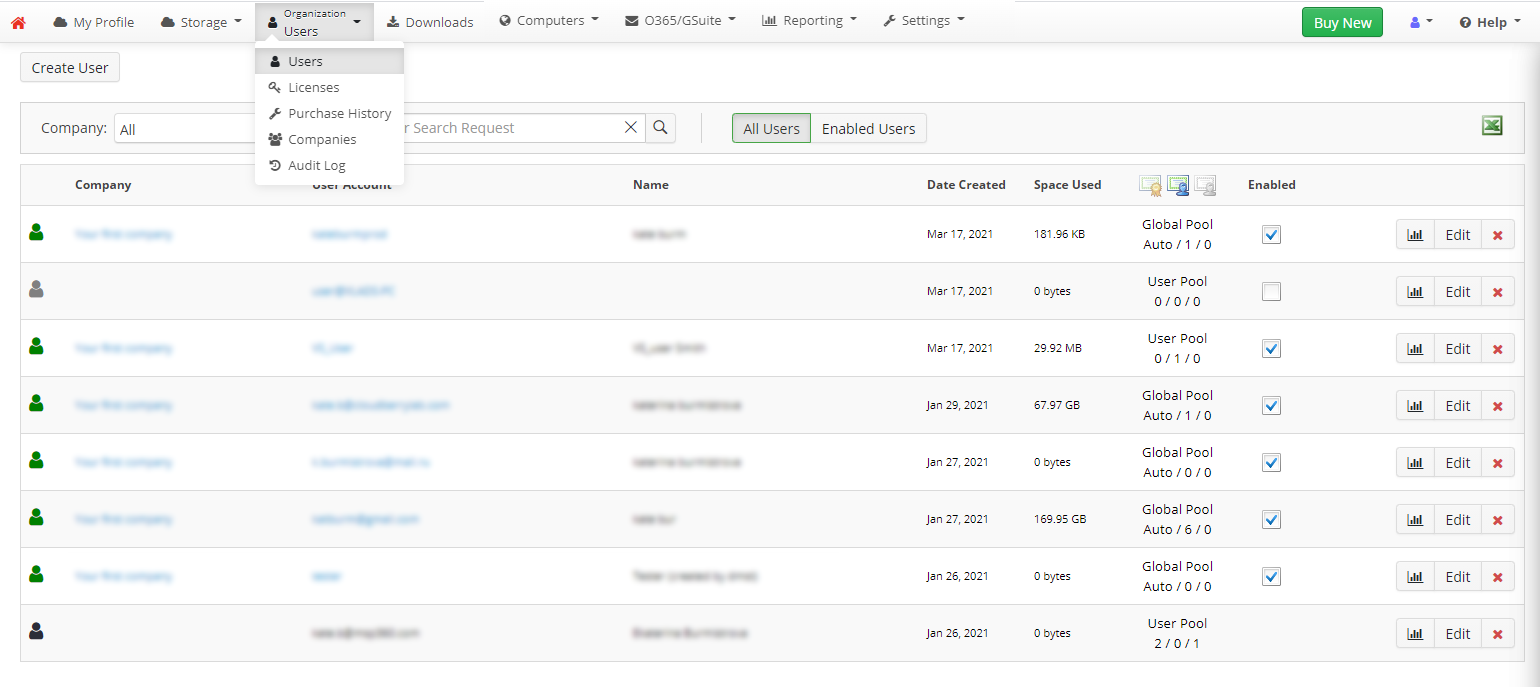
- In the Delete User dialog box, select the action to be applied:
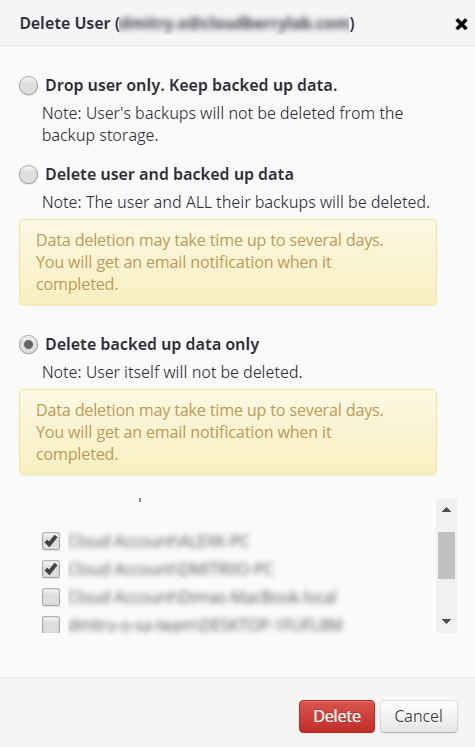
- Select Drop user account only. Keep backed up data option, if you want to delete a user account and keep their backups in storage
- Select Delete user and backed up data option to delete the entire user account including all their backup data and other related information
- Select Delete backed up data only option to delete user backups. Then, in the list below, specify users' computers with backed-up data to be deleted
Once you are finished, click Delete.
2. Once you execute above steps please login to Portal
3. Go to Cloudberry -> Providers Page.
4. You can see the list of Providers you have.
5. Click on Action -> Manage Storage
6. It will open a modal of the storage which you can manage to your provider. You can see that it will allows you to Delete the storage.
7. Delete the storage.
8. Please repeat steps 1 to 8 if storage is attached to multiple providers.
Once you unassign storage for all providers then Go to Storage page and then you can delete the storage.
Please note that without execute above steps you are not able to remove storage from the Portal.
Comments
Article is closed for comments.