
Calendar can be shared with Outlook with following steps.
-
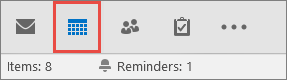
Click Calendar.
-
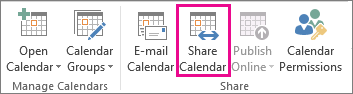
Click Home > Share Calendar.
-
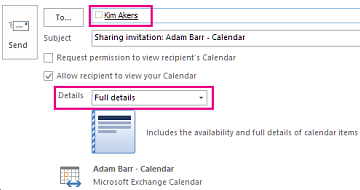
In the email that opens, type the name of the person in your organization that you want to share your calendar with in the To box. In Details, specify the level of details that you want to share with the person in your organization, and then click Send.
-
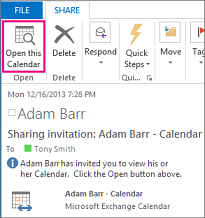
The person in your organization receives the sharing invitation in email, and then clicks Open this calendar.
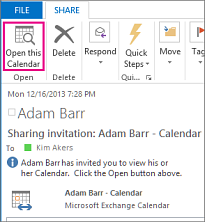
The shared calendar displays in the person’s Calendar list.
Share your calendar with people outside your organization
-
Click Calendar.
-
Click Home > Share Calendar.
-
In the email that opens, type the email address for the person outside of your organization that you want to share your calendar with in the To box. In Details, specify the level of details that you want to share with the person outside of your organization, and then click Send.
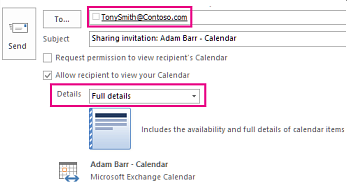
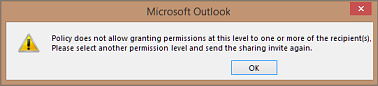
If the following error displays when you try to send your sharing invitation, you have tried to share more details than is supported by the settings in your organization. If this occurs, under Details, choose to share a different level of details. Only an admin in your organization can change the sharing policy settings for your organization. For more information, see the end of this section.
-
The person in your organization receives the sharing invitation in email, and then clicks Open this calendar.
-
The shared calendar displays in the person’s Calendar list.
If you receive an error when you try to share more details that are supported by the sharing policy settings in your organization, contact the person that manages your email account.
Change permissions after you have shared your calendar with other people
You can change calendar sharing permissions.
-
Click Calendar.
-
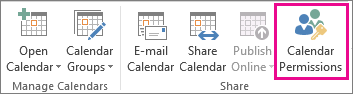
Click Home > Calendar Permissions.
-
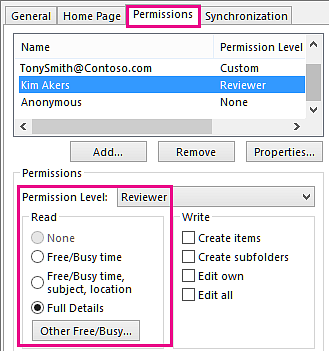
On the Permissions tab, make any changes to the calendar sharing permissions.
-
Click OK.
Comments
Article is closed for comments.