
To change licenses in Office 365 please follow these steps:
1. Login to https://securesitecontrol.com/O365/Administration/Manage
2. Click the "+" sign on the left of the tenant:

3. Add licenses you want and Save Changes (it might take up to 5 minutes for the licenses to show in the Office 365 environment)
4. Login to https://portal.office.com/adminportal/home with you admin account
5. Go to Users > Active users
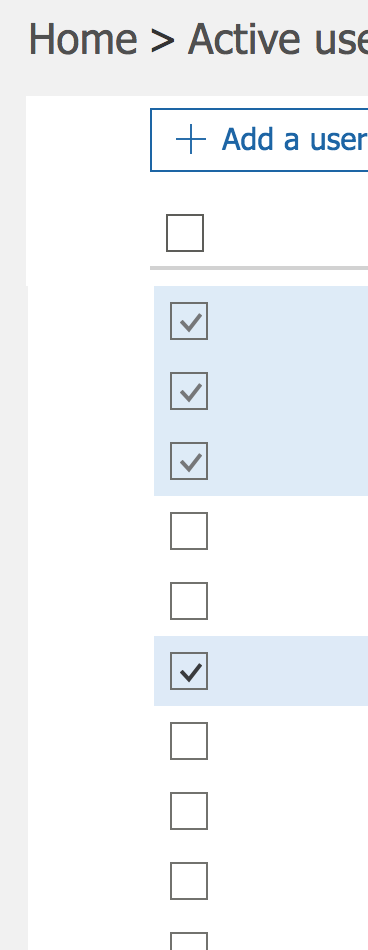
6. Select users you want to change licenses for
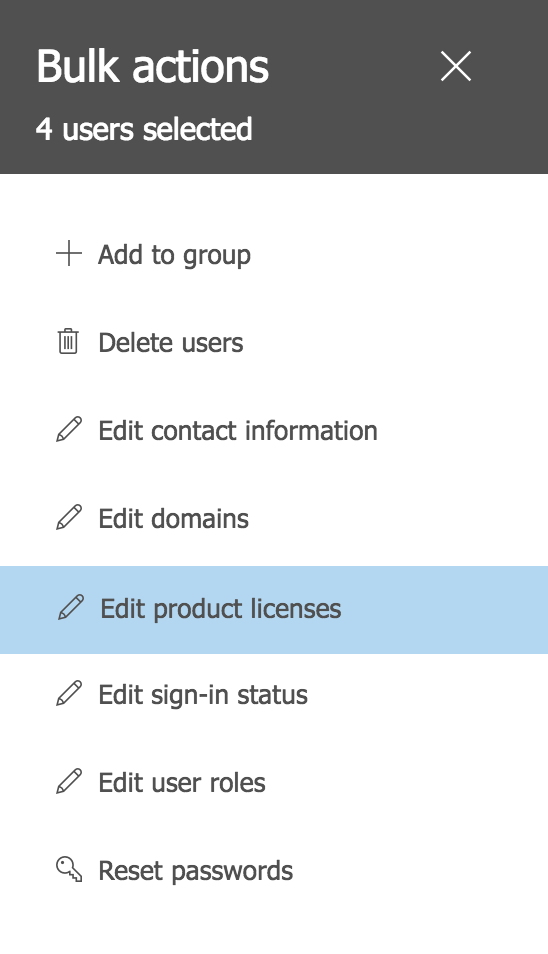
7. In the bulk actions menu select Edit product licenses
8. Select Replace existing product license assignments
9. Switch off licenses that are assigned to users and switch on licenses you want to assign
10. Click Replace
11. Save and close the bulk actions window
12. Go back to https://securesitecontrol.com/O365/Administration/Manage
13. Remove licenses that were taken off the users and Save Changes
Comments
Please sign in to leave a comment.