
Email encryption and advanced security for O365 email is an add on called "Azure Information Protection Plan 1 " which is located under your O365 tenant account in our system. Kindly follow below screen to activate.

Once plan added kindly follow below steps to configure your protection policy.
Add Azure Information Protection to the Azure portal and view the policy
-
Sign in to the Azure portal by using the global admin account for your tenant.
-
On the hub menu, select Create a resource, and then, from the search box for the Marketplace, type Azure Information Protection.
-
From the results list, select Azure Information Protection. Then on the Azure Information Protection blade, click Create.
- Click Create again.
Confirm the protection service is activated
The protection service is now automatically activated for new customers, but it's a good idea to confirm it doesn't need manually activating.
-
On the Azure Information Protection blade, select Manage > Protection activation.
-
Confirm whether protection is activated for your tenant:
-
If protection is activated, you see the following confirmation:

-
If protection is not activated, you see this reflected in the status information, and the option to activate:

-
-
If protection isn't activated, select Activate.
When activation is complete, the information bar displays Activation finished successfully.
-
The Azure Information Protection client is installed on your computer.
To install the client, go to the Microsoft download center and download AzInfoProtection.exe from the Azure Information Protection page.
-
A computer running Windows (minimum of Windows 7 with Service Pack 1), and on this computer, you're signed in to Office apps from one of the following categories:
-
Office apps minimum version 1805, build 9330.2078 from Office 365 Business or Microsoft 365 Business when you are assigned a license for Azure Rights Management (also known as Azure Information Protection for Office 365).
-
Office 365 ProPlus.
-
Office Professional Plus 2019.
-
Office Professional Plus 2016.
-
Office Professional Plus 2013 with Service Pack 1.
-
Office Professional Plus 2010 with Service Pack 2.
-
Edit the Azure Information Protection policy
Using the Azure portal, we'll first change a couple of policy settings, and then create a new label.
Edit the policy settings
-
Open a new browser window and sign in to the Azure portal as a global admin. Then navigate to Azure Information Protection.
For example, on the hub menu, click All services and start typing Information in the Filter box. Select Azure Information Protection.
If you are not the global admin, use the following link for alternative roles: Signing in to the Azure portal
-
Select Classifications > Policies > Global to open the Policy: Global blade.
-
Locate the policy settings after the labels, in the Configure settings to display and apply on Information Protection end users section.
Make a note of how the settings are currently configured. Specifically, the settings Select the default label and Users must provide justification to set a lower classification label, remove a label, or remove protection. For example:
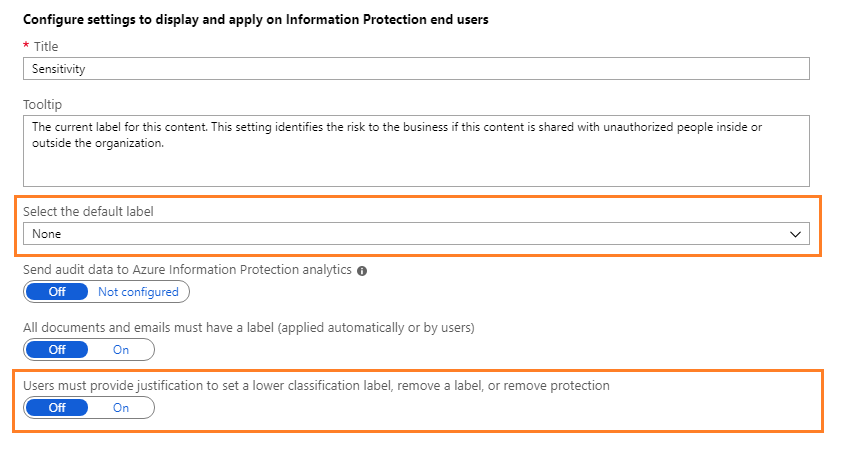
We'll use these policy settings later in the tutorial when you will see them in action.
-
For Select the default label, select General.
If you don't have this label because you have an older version of the policy, create new label as shown below.
-
For Users must provide justification to set a lower classification label, remove a label, or remove protection, set this option to On if it is not already.
-
In addition, make sure that Display the Information Protection bar in Office apps is set to On.
-
Select Save on this Policy: Global blade, and if you're prompted to confirm your action, select OK. Close this blade.
Create labels - if necessary
Your organization might already have labels because they were automatically created for your tenant, or because you have sensitivity labels in the Office 365 Security & Compliance center, the Microsoft security center, or the Microsoft compliance center. Let's take a look:
-
Select Classifications > Labels:
If you see the option Generate default labels, you don't yet have any labels:

If you don't see this option to generate default labels, you already have labels, probably similar to those in the following picture, which are the default labels for Azure Information Protection:
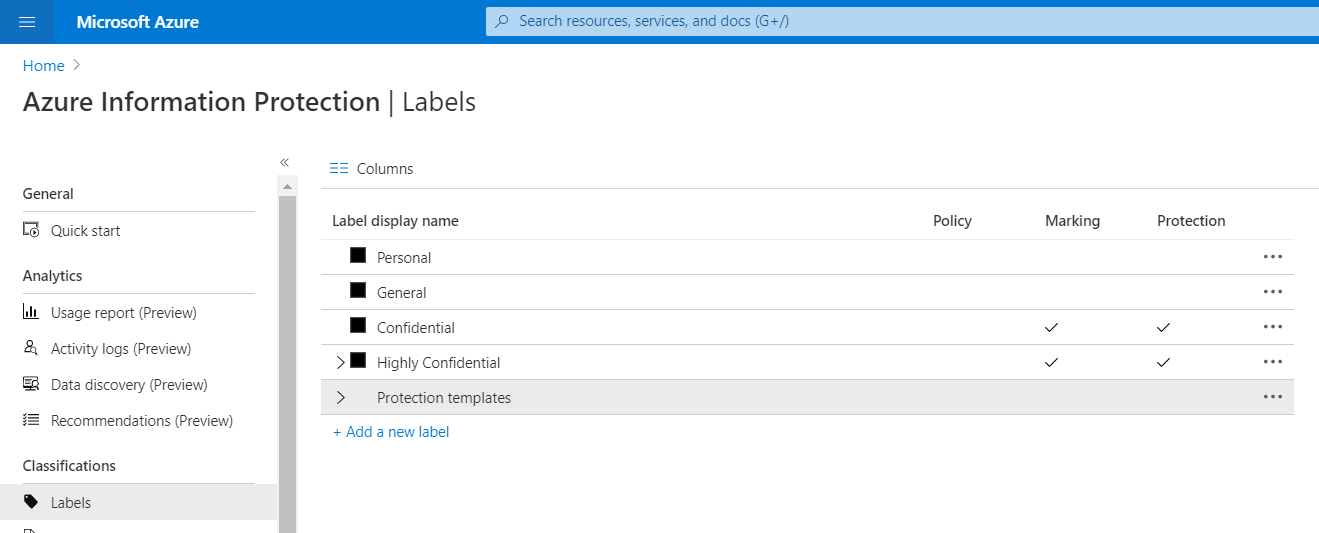
-
If you do have labels, go to the next section to view your labels. If you don't yet have labels, select that option to Generate default labels.
-
Then, to publish the labels for all users, from Classifications > Policies > Global:
a. Select Add or remove labels.
b. From the Policy: Add or remove labels blade, select all the labels, and then select OK.
c. Back on the Policy: Global blade, select Save.
See classification, labeling, and protection in action
The policy changes you made and the new label you created applies to Word, Excel, PowerPoint, and Outlook.

Here is how the experience looks for end-users, who are recipients of a protected message. If they have Outlook 2016, Outlook for iOS, Outlook for Android, or Outlook on the web, then they will be able to open these messages seamlessly in the Outlook client. If the recipient is signed into Outlook using their Microsoft account (and they have the latest updates), then they should be good to go.
On the other hand, if you don’t have the official Outlook client to open these messages, then users will have to click through to read their message on the web. Check out Gmail:

Notice, however, that the process is now a bit easier (no attachment) and I can even sign in using my Gmail account. One time passcode is still an option, also.

Just like that, I can retrieve my message via the browser:

Comments
Article is closed for comments.