
You can follow these steps to add your password reset method. After you've set this up the first time, you can return to the Security info page to add, update, or delete your security information.
Note
We recommend using an email address that doesn't require your network password to access.
To set up your email address
-
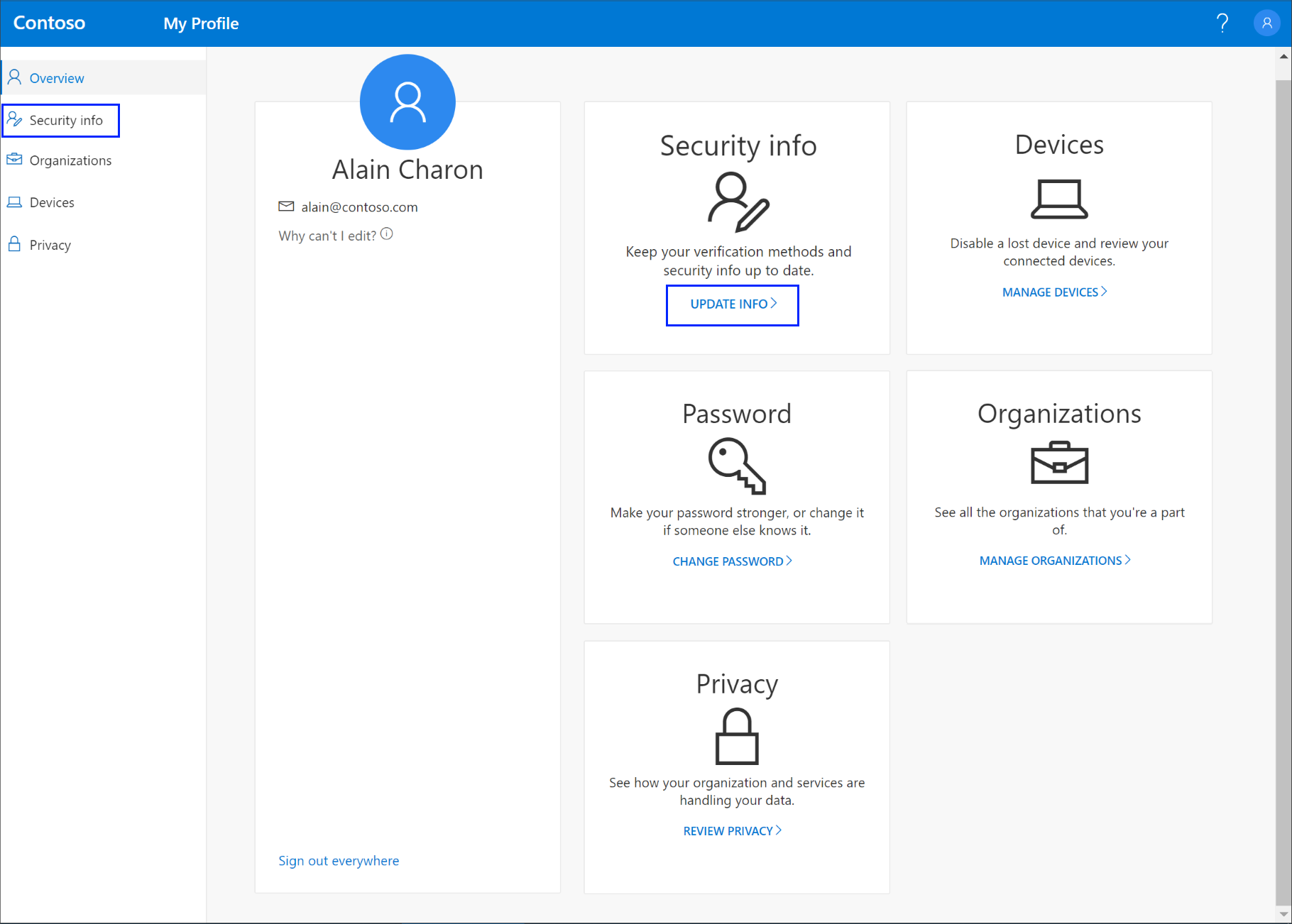
Sign in to your work or school account and then go to your https://myprofile.microsoft.com/ page.
-
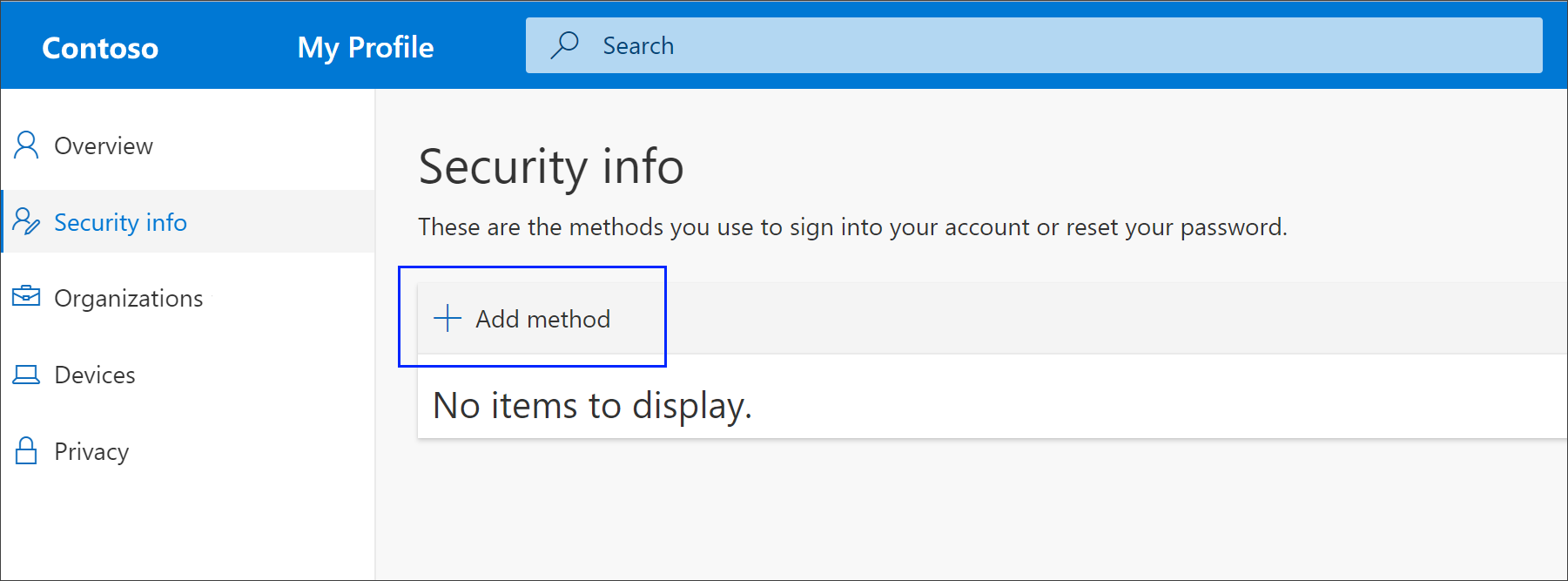
Select Security info from the left navigation pane or from the link in the Security info block, and then select Add method from the Security info page.
-
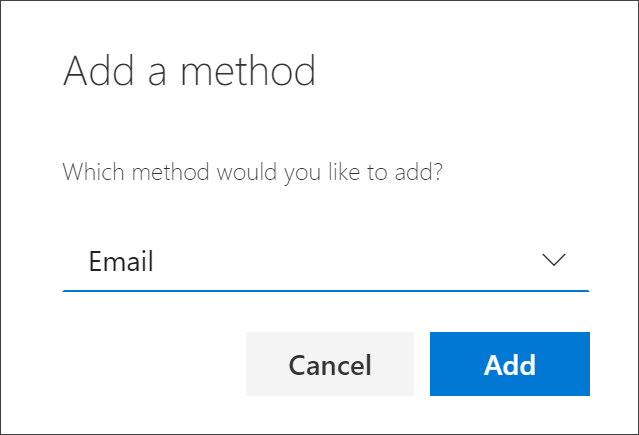
On the Add a method page, select Email from the drop-down list, and then select Add.
-
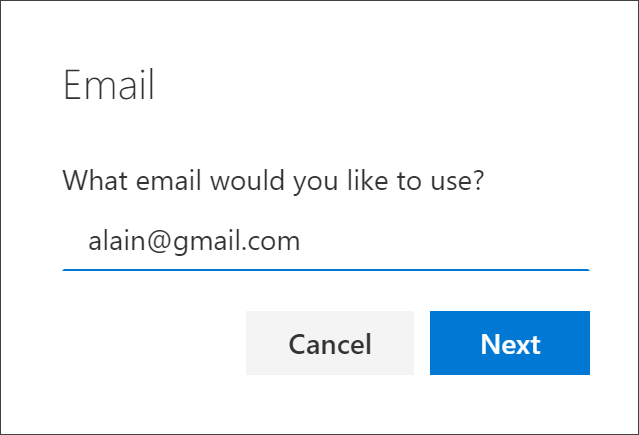
On the Email page, type your email address (for example, alain@gmail.com), and then select Next.
Important
This email address can't be your work or school email.
-
Type the code sent to your specified email address, and then select Next.
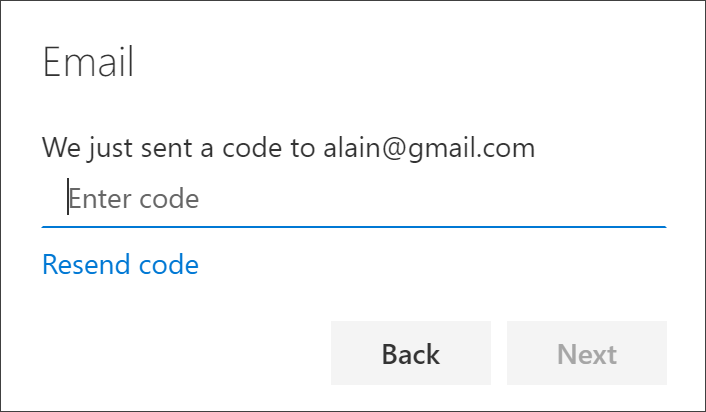
Your security info is updated and you can use your email address to verify your identity when using password reset.
Delete your email address from your security info methods
If you no longer want to use your email address as a security info method, you can remove it from the Security info page.
Important
If you delete your email address by mistake, there's no way to undo it. You'll have to add the method again, following the steps in this article.
To delete your email address
-
On the Security info page, select the Delete link next to the Email option.

-
Select Yes from the confirmation box to delete the Email account. After the email account is deleted, it's removed from your security info and it disappears from the Security info page.
Additional security info method
-
Mobile device text. Enter your mobile device number and get a text a code you'll use for two-step verification or password reset. For step-by-step instructions about how to verify your identity with a text message (SMS), see Set up security info to use text messaging (SMS).
Comments
Article is closed for comments.